 Cadus
CadusFor handymen & solo contractors
Job scheduling.
Every detail.
Ready to go.
Your next job is more than a time on a calendar. Keep the client, address, work notes, and equipment together. Then turn the finished work into an invoice.
Start with your next job. Schedule it free.
For iPhone and Android · Available in the U.S.
See scheduling in action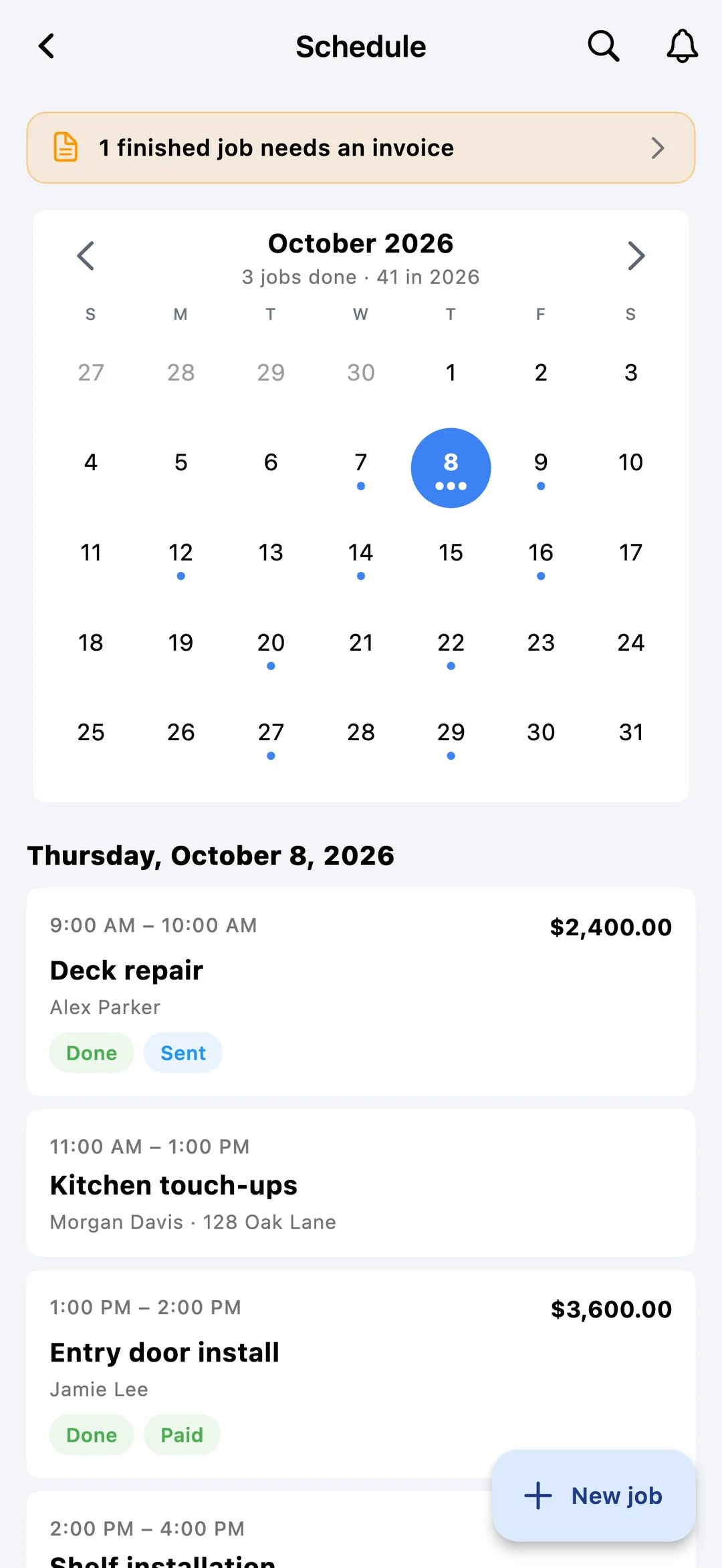
Plan the job
Arrive with the details
Keep the invoice connected
A job has a lot of moving parts
Leave the house
with a clear plan.
A door repair in the morning. A fixture replacement after lunch. Put the details of each visit where you will look for them: with the job.
Less piecing the day together.
More getting the work done.
- Who. Where. When.
- Keep the client, job address, and scheduled date and time together. Check the next stop before you head out.
- The work you agreed to do.
- Write down the planned work while the conversation is fresh. Give yourself a clear brief to come back to on the day.
- The equipment to bring.
- Save the tools and equipment the job needs alongside its notes. Read the list before you load up.
- What happens next.
- Mark the job complete or canceled as plans change. Create a linked invoice when you are ready to bill for the work.
Take a closer look
Your schedule. In action.
A 50-second tour of scheduling in Cadus.
Real app screens. Example job details.
A captioned product tour using real Cadus screens with fictional job details. No sound needed.
Read the video transcript
- 00:00
Your week. In view. Job scheduling, in Cadus.
- 00:06
Make room for the next job. Set the date, start time, and end time.
- 00:13
The right details. In one place. Keep the client and location with the job.
- 00:20
Bring what you need. Save planned work and equipment for each job.
- 00:27
Finish the job. Start the invoice. Create an invoice or link an existing one.
- 00:35
Your jobs. A clearer view. Review the month and the jobs on your selected day.
- 00:42
Your next job starts here. Start free at cadus.app/scheduling. iOS and Android. U.S. accounts.
From your first job onward
A simple place
to start your week.
You already know the next job on your list. Make that your first job in Cadus.
Set up Cadus
Download the iPhone or Android app and create your account. In Settings → Features, turn on Invoicing & Estimates, then open Schedule.
Add your next real job
Choose the client and date, add the location, and write down the planned work and equipment. Save it so the details are ready when you need them.
Finish the work. Start the invoice.
Update the job when the work is done. Create its linked invoice, review the charges, and send it to your client.
Is Cadus a free job scheduling app?
Yes. You can create and manage scheduled jobs on the free plan. You do not need a Pro subscription to start scheduling. Cadus also offers paid features for other parts of your business; review the plans in the app.
Who is Cadus scheduling for?
Cadus is built for U.S. self-employed workers. The job schedule is useful for solo handymen and contractors who want to keep their own client visits, work details, and invoices together.
Where do I find Schedule in the app?
Create your account in the iPhone or Android app. Open Settings, find Features, and enable Invoicing & Estimates. Schedule is available with that feature enabled.
Can I get a reminder about my jobs?
Cadus supports optional reminders for you, the business owner. Enable notifications and your reminder preferences in the app. These are personal job reminders, not appointment messages sent to clients.
Can I invoice a scheduled job?
Yes. Create a linked invoice from the job, review the work and charges, and send it when it is ready. Completing a job does not automatically send an invoice to your client.
Can clients book appointments themselves?
You add and manage jobs in Cadus yourself. Scheduling does not currently include a public booking link, recurring jobs, calendar sync, or crew dispatch.
Your next job starts here
A clearer week
starts with one job.
Download Cadus and put the next one on your schedule.
Free job scheduling · iOS & Android · U.S. only